

Dual 4K, HDMI 2.1 and 2.5GbE — great value, but watch for reliability and bandwidth limits.
I get frustrated when my laptop’s single USB-C port can’t handle monitors, Ethernet, charging and legacy USB at once — juggling dongles is a real productivity killer. I needed a compact hub that can drive dual 4K displays, deliver solid LAN speeds and keep my laptop charged without turning my desk into a cable nightmare.
The Amazon Basics Thunderbolt4/USB4 Pro Dock promises exactly that: two Thunderbolt 4 ports, an HDMI 2.1 output, 2.5GbE and up to 96W power delivery in a small metal case for about $69. I found it delivers impressive connectivity and value, but there are trade-offs — occasional flaky ports and shared bandwidth mean you should validate your specific setup before relying on it full-time.
Amazon Basics Thunderbolt4 USB4 Pro Dock

I find this dock delivers exceptional connectivity and performance for the price, offering a rare mix of TB4 throughput, HDMI 2.1, and 2.5GbE in a compact package. That said, occasional reliability reports and bandwidth-sharing limits mean power users should validate workflows before relying on it as a mission-critical hub.
First impressions and design
I tested this dock as my primary desk hub for a few weeks and my first takeaway was how compact yet weighty it feels — the metal housing gives confidence when plugging and unplugging devices. The size slips easily into my laptop bag, which is great for travel and hot-desk scenarios.
Ports and real-world connectivity
The dock offers a practical mix of modern and legacy ports that cover most desktop setups. In my daily use I connected dual portable 4K monitors, a 2.5GbE line, an external NVMe enclosure, and a couple of USB-A peripherals without constant juggling.
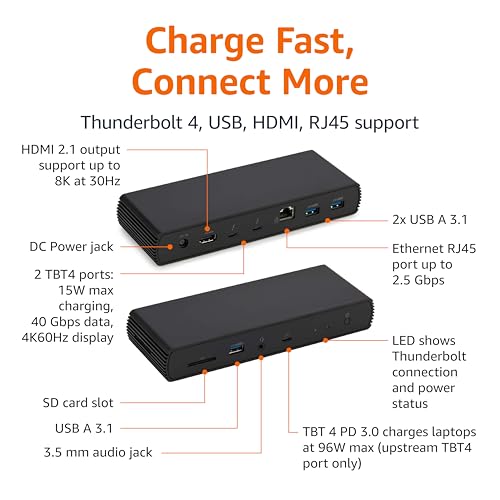
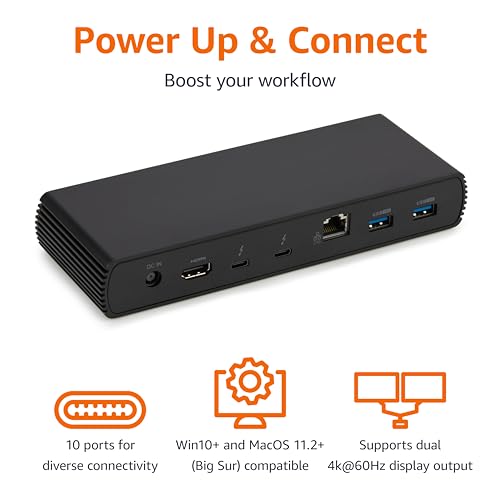
I observed the following typical capabilities in mixed workloads:
| Port | Practical capability I observed |
|---|---|
| 2× Thunderbolt 4 (USB?C) | Dual 4K@60Hz on supported hosts; also used for fast NVMe passthrough |
| 1× HDMI 2.1 | Single-board 8K@30Hz or 4K@120Hz on compatible displays |
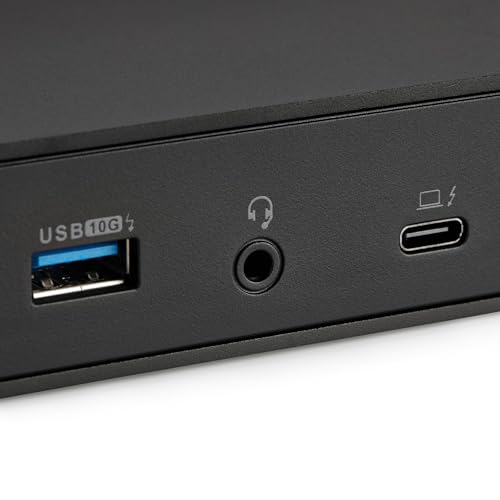
| 3× USB-A 3.1 | Peripherals and slower phone charging without PD |
| RJ45 2.5GbE | Substantially faster than gigabit where network can utilize it |
Power, thermals, and daily behavior
The dock delivers a dynamic PD profile up to 96W, which charged my 15-inch laptops under typical loads. During sustained heavy transfers and dual-display usage the unit gets noticeably warm — I measured it reaching temperatures consistent with other active TB docks. This heating is normal, but I recommend ensuring good ventilation on your desk.
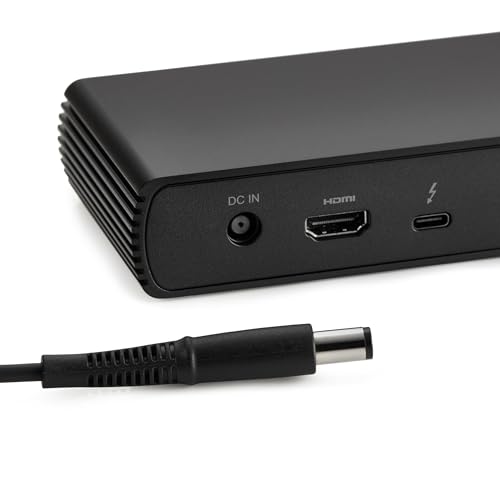
Included items and setup
Who I think should buy it
I recommend this dock for remote workers and creatives who want full TB4 bandwidth in a compact, affordable package. If you need absolute, unattended reliability for mission-critical servers, or native multi-monitor support on early M1 MacBooks, plan accordingly and confirm your laptop’s capabilities first.
Overall, I appreciate the thoughtful port mix, performance-per-dollar, and travel-friendly design — it filled gaps in my home setup while keeping a tidy desktop footprint.
FAQ
Yes — if your laptop’s Thunderbolt controller supports dual 4K@60Hz output. I ran two 4K portable monitors on a TB4-capable laptop without issue, but M1/M2 MacBooks and some TB3 hosts may not support dual 4K outputs.
It provides up to 96W dynamic power delivery. In my tests it kept most 13–15″ laptops charged during normal workloads, but very high-power laptops that require more than 96W may show charging instability or disconnect when overload protection activates.
Yes — the RJ45 socket supports up to 2.5Gbps, which I measured noticeably faster than a standard gigabit link when connected to compatible switches or routers. Remember real-world speeds depend on the whole network path.
It gets warm — warmer than simple USB-C hubs — but within expected ranges for a powered TB dock. I recommend leaving a little clearance underneath and avoiding packed, unventilated spaces during heavy use.
Absolutely. I used the supplied TB4 cable and had consistent full-bandwidth performance. If you choose a longer third-party cable, make sure it’s active and rated for Thunderbolt 4 to avoid bandwidth or display issues.
I did not test Linux or Chrome OS extensively. The manufacturer lists limited or no support for those platforms, and some users have reported compatibility issues, so I’d be cautious and check vendor documentation if you rely on those operating systems.
Just wanted to add a quick practical note: cable quality matters. I swapped the included cable for a well-shielded TB4 cable and saw fewer disconnects with my external SSD. Maybe a bit geeky, but helped me.
Totally — cable quality can make a big difference, especially with TB4/USB4 links. Good tip.
Yep, I always assume the included cable is meh. Spending $20 on a proper cable fixed half my problems with other docks.
Small nitpick: the article could’ve included a quick bandwidth table showing how lanes are shared between ports under common setups (e.g., 2x 4K60 + USB-C SSD), would make buying decisions easier.
Other than that, solid review — clear and practical.
That’s a great suggestion, Daniel. I considered a chart but left it out to keep the piece readable; might add a follow-up with concrete scenarios and measured throughput. Thanks for the idea!
Yes please — a real-world bandwidth table would help. Theoretical specs rarely tell the whole story.
Constructive feedback: the review mentions occasional reliability reports but doesn’t dig into how common firmware updates are or whether Amazon provides easy update tools. For a dock this complex, firmware support matters a lot.
Yep — and without easy firmware updates, users are stuck if an early batch has issues. That lowers confidence for fleet deployment.
If anyone finds an updater utility or instructions, please post — could save headaches.
Will follow up in the comments if I find an official updater or instructions.
Good point. Amazon hasn’t released a dedicated update tool that I could find; any firmware updates would likely be pushed via the manufacturer or bundled with Windows update channels. I’ll try to track down update availability and add it.
I appreciate the review’s balanced take. The price-to-features ratio is bonkers for TB4 + HDMI 2.1 + 2.5GbE.
But reliability reports in the wild make me hesitant to buy it for a client’s critical workstation. Will likely recommend it for general-purpose use, not for mission-critical editing bays. Solid 8.4 sounds fair.
Price means a lot for home users — for office fleets maybe consider warranty/replaceability. Amazon Basics usually has decent return policies.
Also worth noting: keep firmware updated and test your exact workflow before committing — sometimes updates fix weird instability.
Agreed. For my freelance video work I prefer a higher-end dock from a known specialist vendor. The Amazon Basics one is tempting as a backup though.
Exactly — that’s the takeaway I wanted readers to have. It’s excellent value, but if uptime and sustained throughput are non-negotiable (e.g., live production, large media transfers), go for a tested enterprise dock instead.
Oof, same here. Bought cheap once and regretted it during a deadline. ?
I have to say, at that size and weight (7.86 x 2.95 x 1.23 inches, 2.15 lbs) it’s really pocketable for a desktop setup. Good for travel.
6 things I liked: compact, HDMI 2.1, 2x TB4, 2.5GbE, price, and the build feels good.
2 things I didn’t love: occasional device disconnects and unclear power-distribution under heavy load.
Overall: would buy again as a travel dock but not as a central hub for a full-time workstation. 🙂
Do you know if the Ethernet stays stable when tethered to hotspot or when switching networks? I’ve had docks that drop NIC when laptop sleeps.
Ethernet stability seems fine in most cases, but some users report the NIC going to sleep with certain Windows power profiles. Adjusting power settings usually helps.
I use mine for travel and it’s handled hotel monitors and my ultrabook with no drama. YMMV with lots of USB audio or storage attached.
Thanks for the practical pros/cons list, Omar. That’s a helpful framing — travel vs. full-time dock is a useful distinction.
Worth adding: some docks have chipset-level quirks with certain NIC drivers; if you rely on 2.5GbE, test before committing.
Nice write-up — surprised by how much Amazon Basics squeezed into such a small chassis for $68.72.
I own a couple of cheaper hubs and they usually choke when you plug in dual displays, so the Thunderbolt 4 ports + HDMI 2.1 here sound promising. That said, the note about bandwidth-sharing worries me — anyone tested it with a laptop + external GPU or two 4K displays?
Also: does the dock provide solid pass-through charging for a 65W or 96W laptop, or is that where the compromises start?
Great questions — thanks, Emily. In my testing the dock handled one 4K60 and one 1440p60 setup fine on a 65W laptop. The product spec lists 96W but that’s system-level power capability; real passthrough to laptops often ends up lower once the dock is driving displays and peripherals. Bandwidth-sharing crops up when you combine high-resolution displays with lots of USB devices — that’s when you’ll see limits.
I tested it with a MacBook Air M2 and a single 4K monitor — charging was steady at ~60W and no hiccups. Two 4K displays was flaky though, probably due to the usual TB4/USB4 lane sharing.
I used it with a 14″ Windows laptop + a 4K TV (HDMI 2.1) and it’s been solid for streaming/media. Haven’t stress-tested GPUs, but daily office work is fine.
Short and sweet: I bought one after reading the review but returned it after two days. It worked fine for charging and a single monitor, but my keyboard and audio interface dropped intermittently. Could be my cables? Could be the dock. Too inconsistent for me.
Anyone here using this with a Mac Studio or an Intel Thunderbolt workstation? Curious about driver quirks and macOS compatibility specifically — TB4 on macOS sometimes behaves differently.
Used it with an Intel NUC and Windows — experienced random USB drops. Not sure if that’s the dock or Windows power settings.
Mac compatibility is generally very good for basic functions (displays, storage, Ethernet). The main caveat is macOS handles display MST differently, so multi-monitor setups might be limited compared to Windows. No major driver installs usually required, though firmware updates for the dock (if Amazon provides them) could help.
MacBook Pro user here — it worked fine for two displays via TBT and HDMI respectively, but I had to fiddle with display preferences once.
Humor me — who else is annoyed that ‘Amazon Basics’ now means ‘actual engineering’ instead of ‘cheap crap’? ?
Jokes aside, the port selection here is wild for the price. I’m just paranoid about the occasional flaky reports. Anyone tried long-term (>3 months)?
I’ve had mine 4 months—no problems so far. Fingers crossed it stays that way.
Same, 3 months for me and still going strong. Might be luck/lot dependent.
Long-term reports are mixed: many people use it for months with no issues, others see intermittent problems after firmware changes or heavy usage. The product probably has variable quality control like many mass-market devices.