
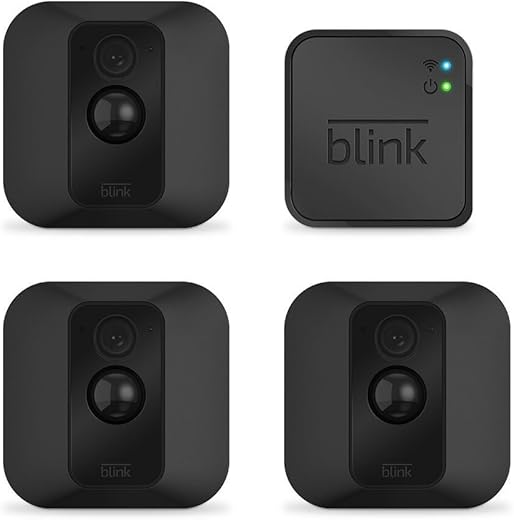
This guide provides a detailed, step-by-step process for setting up the Blink Outdoor Security Camera, an affordable and efficient solution for home monitoring. Readers will learn how to install the camera, connect it to Wi-Fi, and sync it with the Blink app to access live views and receive motion alerts. The instructions ensure a straightforward setup, enabling users to enjoy enhanced security for their homes in no time.
Unbox and Prepare the Camera
Unbox your Blink Outdoor Security Camera carefully, ensuring you don’t damage any components. Check the contents thoroughly, making sure you have the camera unit, batteries, mounting screws, and user manual. If any items are missing, contact customer support for assistance. After confirming the components, remove the camera from its protective packaging. Take off any protective coverings from the camera lens to avoid obstructing the view.
Install the batteries into the camera by opening the battery compartment. Follow the orientation markings inside the compartment to ensure correct placement. Once the batteries are in place, secure the compartment closed. Inspect the camera for any additional protective materials, such as plastic inserts or tape, and remove them as needed. This will enhance the camera’s performance and ensure clear visuals. Get ready to start the installation process once you’ve prepared the device properly.
Download the Blink App
Download the Blink Home Monitor app from the Apple App Store or Google Play Store. Access the app store on your mobile device, search for “Blink Home Monitor,” and tap the install button. Wait for the app to download and install completely. Once the installation is finished, locate the app icon on your device’s home screen and tap it to open the app.
Create an account or log in if you already have one. Follow the on-screen prompts to enter your email address and create a strong password if you’re new to the Blink ecosystem. If you already have an account, simply enter your login credentials to get started. After logging in, you will be directed to the main dashboard, where you can easily manage your Blink camera settings, view live footage, and receive notifications for motion alerts. Ensure that you allow necessary permissions for the app to function optimally, including access to your device’s camera and notifications.
Set Up Your Blink System
Log in to your Blink app and select ‘Set Up a New System.’ Follow the on-screen prompts to create a unique name for your system. Choose a name that is memorable and easy to identify, as this will help you manage your devices efficiently. Once you have entered the desired name, tap ‘Next’ to proceed with the setup process.
Connect the Blink Sync Module to your Wi-Fi network. When prompted, enter your Wi-Fi credentials, including the network name (SSID) and password. Make sure you input this information accurately, as any errors may prevent the Sync Module from connecting to the network. After submitting your credentials, wait for the app to confirm that the connection was successful. Once connected, your Blink system will be ready for further configuration and device setup.
Add the Blink Outdoor Camera
Open the Blink app on your mobile device and navigate to the home screen. Tap on the option labeled ‘Add a Camera’ to begin the pairing process for your Blink Outdoor Camera. Ensure that your Sync Module is powered on and connected to your Wi-Fi network. Position your camera within range of the Sync Module for a seamless connection. When prompted, press and hold the button on the back of the Blink Outdoor Camera. This action activates the pairing mode, indicated by a flashing light on the device.
Confirm the pairing in the app by following the on-screen instructions. The app will search for devices, and once it detects your Blink Outdoor Camera, select the appropriate camera from the list. You may be required to name your camera for easy identification later. After confirming your choice, the app will finalize the setup, and you’ll receive a notification when the pairing is successful. Keep an eye on the camera’s LED indicator; it should turn solid once the connection is established, indicating that your Blink Outdoor Camera is now ready for use.
Position and Mount the Camera
Identify an optimal location for your Blink Outdoor Security Camera by selecting an area with a clear line of sight to the space you wish to monitor. Avoid placing the camera in areas with obstructions like trees, walls, or decorative elements that could impede its view. Aim for locations such as near doorways, driveways, or patios where activity is most likely. Ensure that there is adequate lighting during both day and night, as this enhances the camera’s ability to capture clear footage.
Secure the camera using the included mounting screws, ensuring it is positioned at a height of at least 7 to 10 feet above the ground for the best angle. Tilt the camera slightly downward to capture a broader view of the area below. For instance, if monitoring a front yard, mount the camera on an eave or wall that overlooks the path leading up to your home. Test out the angle by checking the live view on your app before fully tightening the screws. Adjust as necessary to ensure that the camera captures the desired field of vision, optimizing its effectiveness.
Final Thoughts and Tips
In conclusion, setting up your Blink Outdoor Security Camera is an easy and efficient way to enhance your home security. By simply following the outlined steps—unboxing, downloading the app, connecting to Wi-Fi, adding the camera, and mounting it correctly—you can ensure a seamless installation and peace of mind. With your camera in place, you can monitor your property effectively and stay connected, making your home a safer place.
Related
Share : facebook.com twitter.com linkedin.com
This article is super helpful! I finally set up my camera without any issues. Thanks!
Pro tip: make sure the camera is within range of your wifi for best performance!
Great tips! Just installed mine and I’m loving the live view feature.
Can’t wait to see how it works at night. Thanks for the info!
Why does my camera keep disconnecting? Anyone else had this problem?